Process a folder of files
Goal: convert and stitch every .mcd file of a study in one run.
Desktop app
- Start
mcd_guiand switch Input to Batch. - Click Browse… and choose the folder. Its
.mcdfiles appear in the list on the left, each read so its regions and channels can be checked. - Click a file's name to see its regions and channels. Region picks belong to each file. Untick a file's ✓ to skip it altogether.
- Pick channels per file, or pick them once and tick Apply these picks to every file to copy them to the other files by channel name. A warning appears if the ticked files do not share one channel panel.
- Tick the outputs and press Run. Each file in the list turns cyan while it runs, then green when done, red if it failed, or amber if it was stopped part-way.
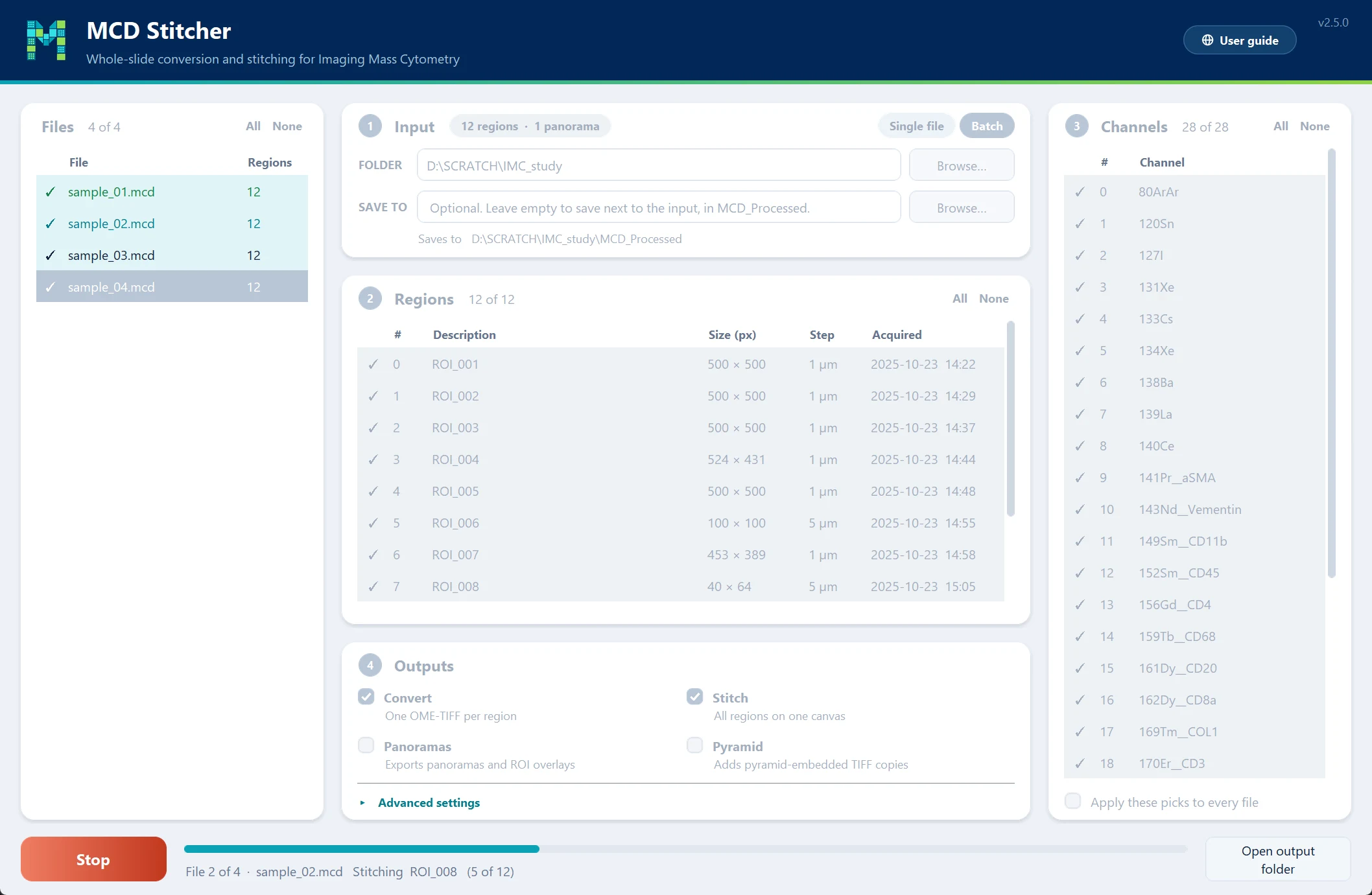
Carrying on after a stop
With Overwrite existing files off, the default, files that already have their outputs are skipped. Running the same batch again after a stop carries on with the files it had not reached. A file stopped part-way already has some outputs, so it is skipped too: tick Overwrite existing files, or delete its folder, to redo it.
To keep a record of the run, tick Save a log file under Advanced settings; it is written as mcd_stitcher.log.
Command line
mcd_process "path/to/folder" --convert --stitch
Every .mcd file in the folder is processed in turn, each into its own MCD_Processed/<file name>/. A file that fails is reported and skipped, and the command ends with a summary of any failures. The command line always overwrites existing outputs.