Desktop app
mcd_gui opens a window over the same engine as mcd_process: choose a file or a folder, pick regions, channels and outputs, and press Run.
mcd_gui
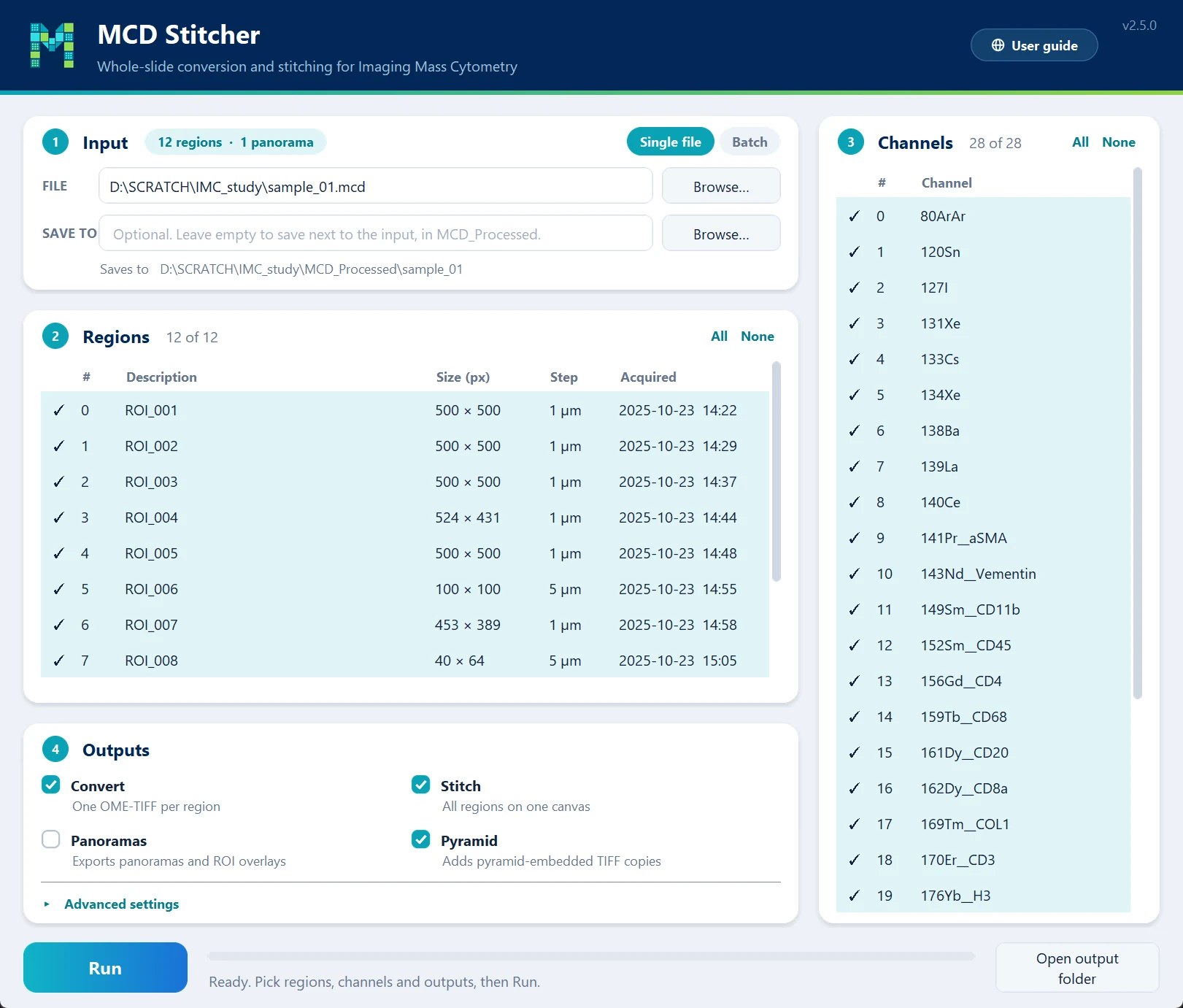
User guide, at the top right of the window, opens this page; so does the F1 key.
One file or a batch
The switch at the top of Input sets the mode.
- Single file — one
.mcdfile. Browse… opens a file picker, or paste a path into the box. - Batch — a folder of
.mcdfiles, or several files pasted as quoted paths (what Windows Explorer's Copy as path gives you). A file list opens on the left:- click the ✓ column to include or leave out a file;
- click a file's name to show its regions and channels.
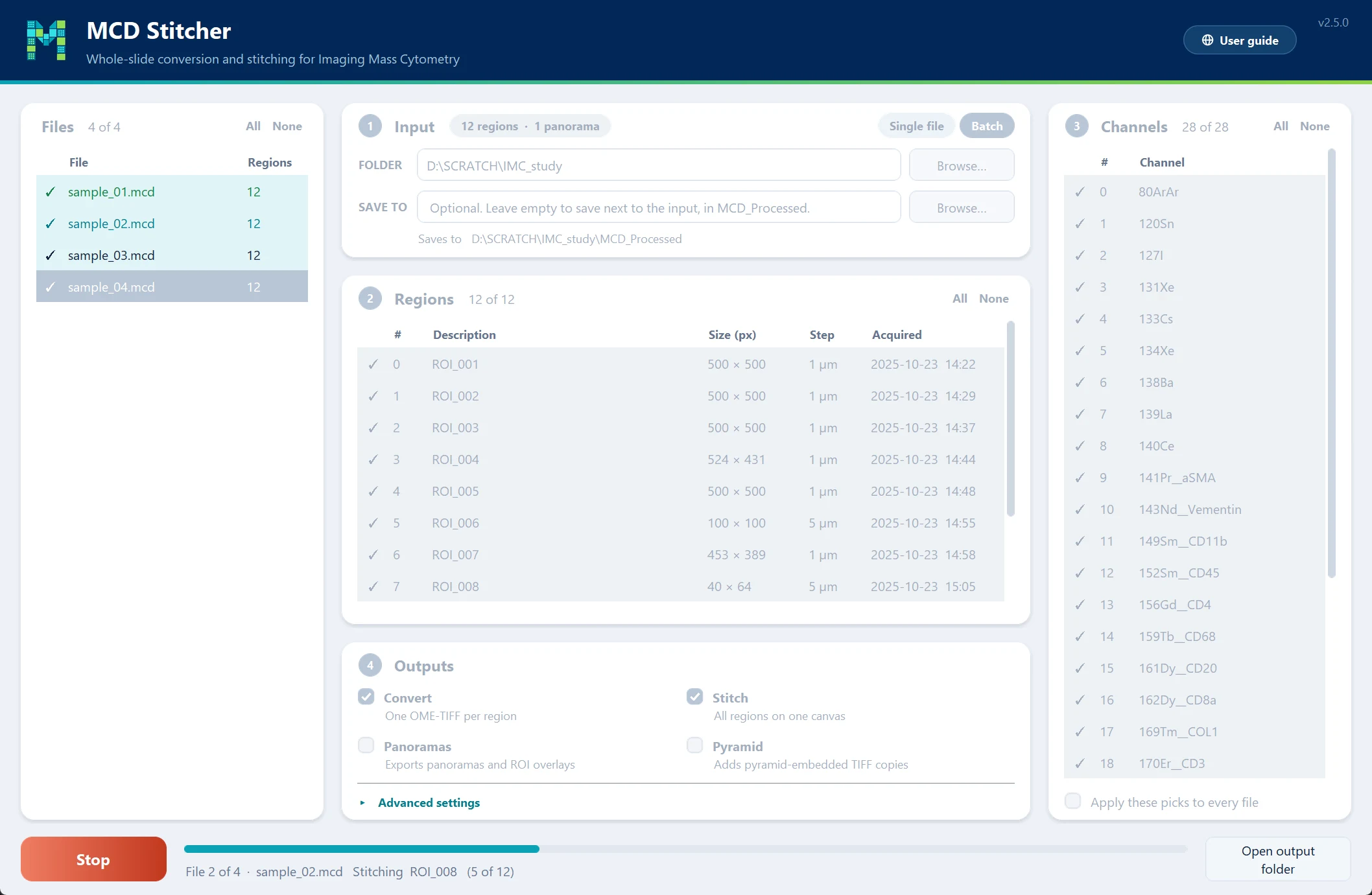
sample_01 is done, sample_02 is running, and sample_04 is the file on show.Save to is optional. Left empty, results go to MCD_Processed/ next to the input; the line underneath shows exactly where.
Regions and channels
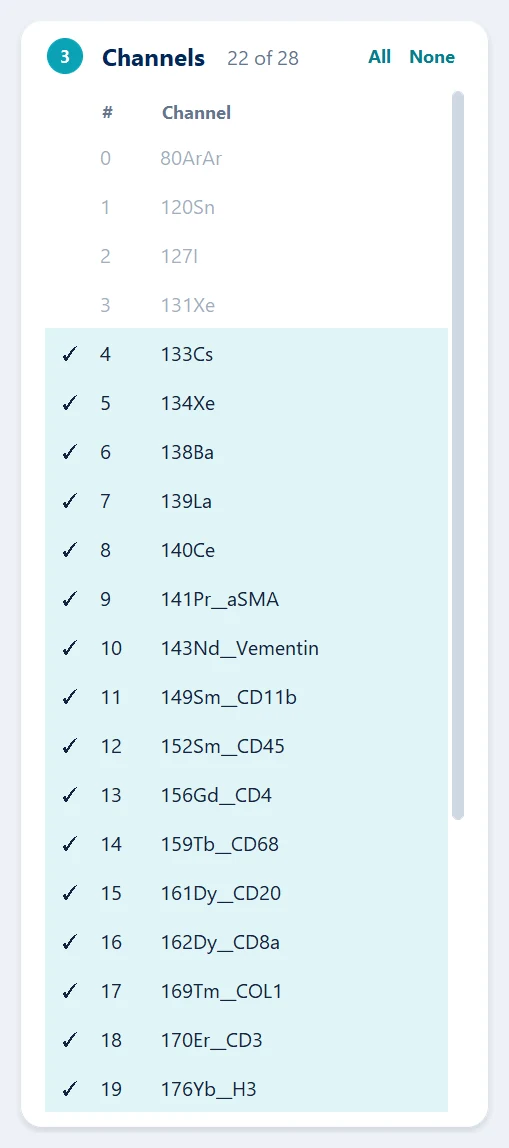
Both tables are checklists. Every row starts ticked; click a row to leave it out, or use All and None.
- Regions you leave out are not converted or stitched.
- Channels you leave out give an extra
_filteredcopy of each output, holding only the ticked channels. The full files are still written. Here the background and calibration channels are left out. - In a batch, region picks belong to each file. Channel picks do too, unless you tick Apply these picks to every file, which copies them to the other files by channel name. A warning appears when the ticked files do not all share one channel panel.
- Panoramas always cover the whole slide, whatever is ticked in the tables.
Outputs
| Output | What you get |
|---|---|
| Convert | One OME-TIFF per region. |
| Stitch | All regions on one canvas. |
| Panoramas | The slide panoramas as PNG images, with region outlines drawn on large ones. |
| Pyramid | A copy of each converted or stitched file stored as tiles at several resolutions, for smooth panning and zooming. Needs Convert or Stitch. |
With channels left out and Pyramid ticked, each output gets one _filtered_pyramid copy: the channel subset, stored as a pyramid.
Advanced settings
Click Advanced settings to show them.
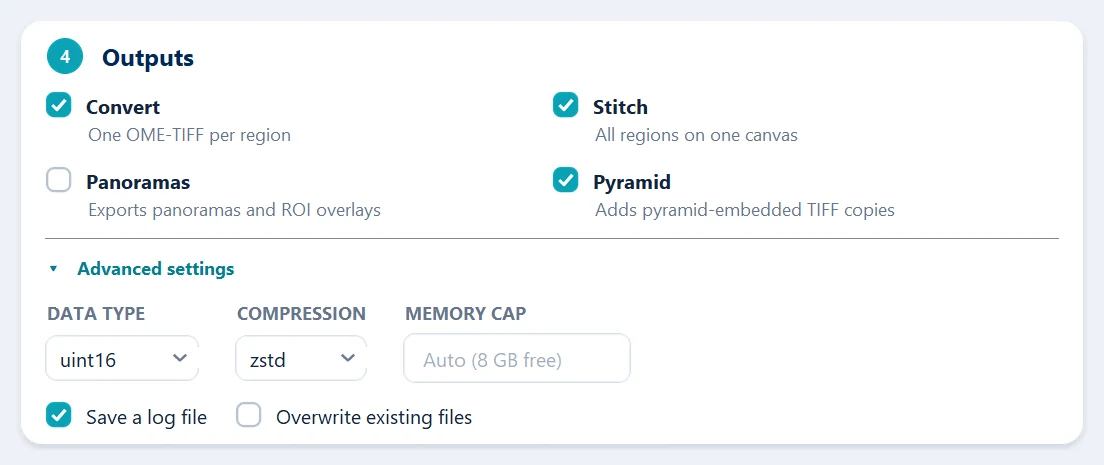
| Setting | Default | What it does |
|---|---|---|
| Data type | uint16 |
Pixel type of the OME-TIFFs: uint16 or float32. |
| Compression | zstd |
zstd, LZW or None. |
| Memory cap | automatic | How much memory a run plans for, e.g. 8G. Left empty, the detected limit is used (shown in grey). See Memory. |
| Save a log file | off | Writes mcd_stitcher.log into the output folder. |
| Overwrite existing files | off | When off, a file whose outputs are already there is skipped. |
Running and stopping
Press Run to start. The inputs grey out and lock until the run ends, and the bar and the line under it follow progress. In a batch, each file in the list turns cyan while it runs, then green when done, red if it failed, or amber if it was stopped part-way.
- Stop halts at the next safe point, after the region or copy being written. Files already finished are kept; a half-built stitched canvas is discarded.
- Force stop, a second click, ends the run at once and deletes any file it left half-written.

Your system's notification sound plays when a run finishes, and Open output folder shows the results.
Updates
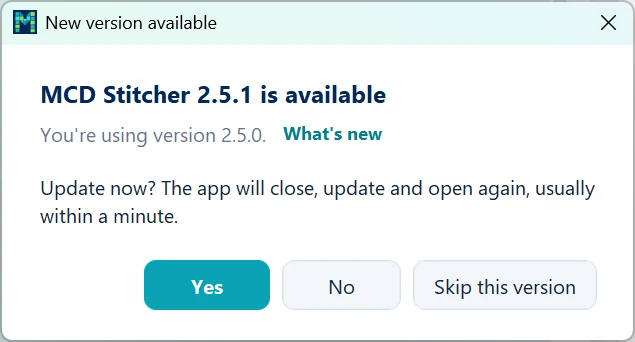
When the app opens, it checks whether a newer version is out. If one is, a window names it, links to what's new in it, and asks whether to update now:
- Yes closes the app, installs the new version and opens it again. If the update can't finish, a small window says why, and the version you had keeps working.
- No asks again the next time the app opens.
- Skip this version stays quiet until a later version comes out.
Without an internet connection, the app opens as usual.